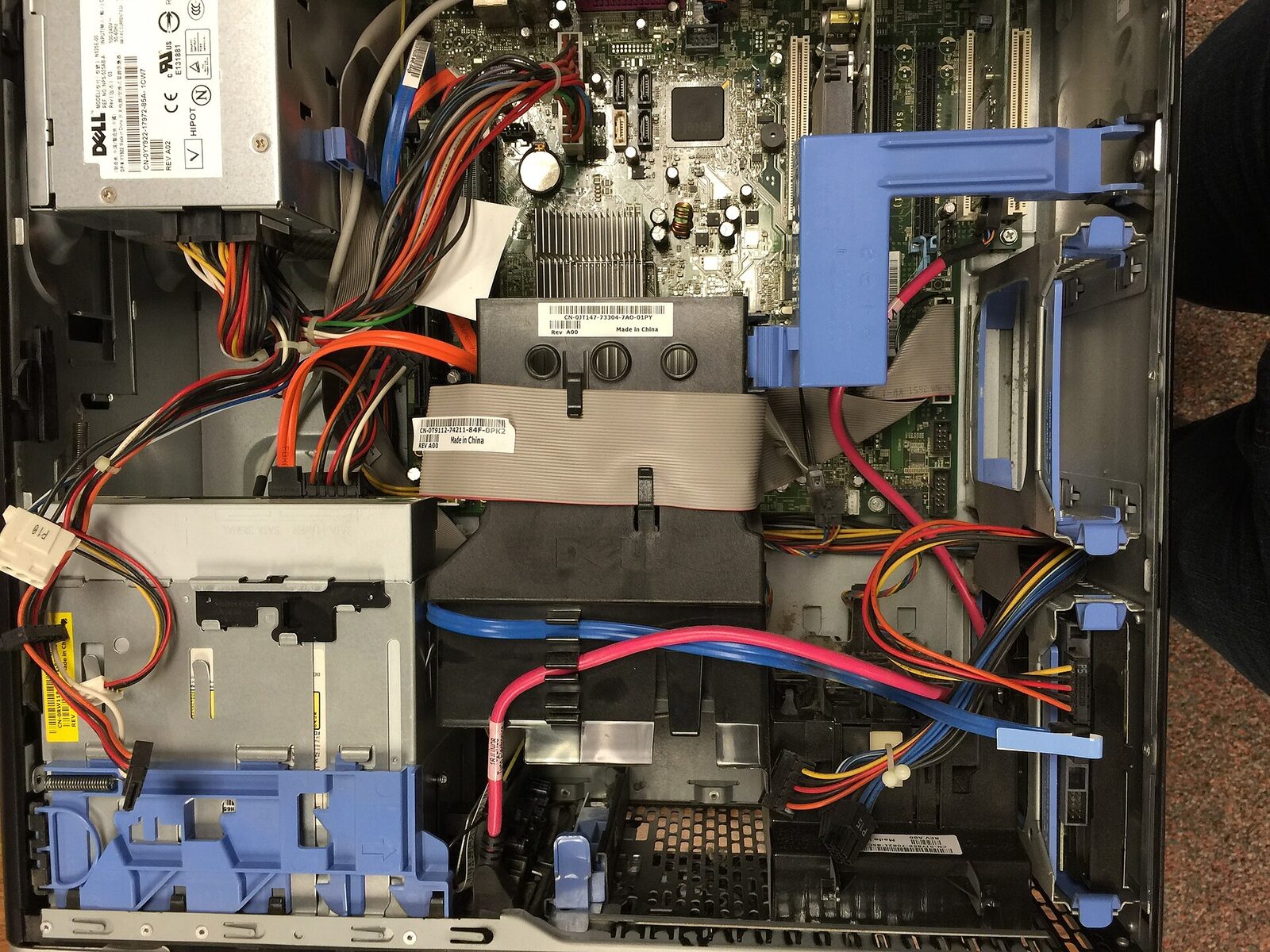
If you typed "where to" into a search box because you want to know what is actually inside your computer without paying, signing up, or installing anything, the answer is already on your machine. On Windows, open System Information (msinfo32) or run the systeminfo command. On macOS, open System Information from About This Mac.
Windows: System Information (msinfo32)
Microsoft includes a tool called System Information with every copy of Windows. It shows your hardware, system components, software environment, drivers, and configuration details. You do not need an account or a payment card because it is a local built-in Windows tool. It works wherever Windows itself is installed, and it is free because Microsoft provides it as part of the operating system. To open it, press Win + R, type msinfo32, and press Enter. This is the best first stop for a full picture of your machine.
Windows: Command-Line systeminfo
If you prefer typing over clicking, Microsoft also includes a command-line tool called systeminfo. Open Command Prompt or PowerShell, type systeminfo, and press Enter. It displays detailed configuration information including OS configuration, security information, product ID, RAM, disk space, and network cards. Like the GUI tool, it requires no account or payment card, works on any Windows installation, and is free because it is included with Windows. This is the faster option if you already have a terminal open.
macOS: System Information App
Apple’s System Information app shows a system report with detailed hardware, network, and software specifications. You can open it from About This Mac (click the Apple logo in the top-left, then "About This Mac," then "System Report") or from System Settings. No account or payment card is required to view the report locally. It is free because it is a built-in macOS feature made available by Apple. This is the only tool you need on a Mac to see what is inside.
The Thing People Get Wrong
The most common mistake is assuming you need a third-party utility or a website that asks for an email address. You do not. The built-in tools on Windows and macOS already give you everything you need, and they work offline. The second mistake is looking for a single universal answer for Linux. Unlike Windows and macOS, there is no single official documentation page for "system info" across all Linux distributions. That is because Linux varies: some desktops have a "System Info" panel, some use terminal commands like lscpu or free -h, and some use a graphical tool like hardinfo. None of those are guaranteed to be pre-installed, and there is no one official source. If you are on Linux, your best bet is to open your desktop's settings or search for "system monitor" or "hardinfo" in your package manager.
What to Check Before You Commit to a Third-Party Tool
If you still want a third-party tool after trying the built-ins, check three things first. Does it require an account? If yes, skip it. Does it require a credit card for a "trial"? If yes, skip it. Does it install extra software or change your browser homepage? If yes, skip it. The tools that pass these checks are rare, and honestly, you do not need them for basic specs. The built-in tools are faster, safer, and already there.
When the Built-In Tools Are Not Enough
If you need to compare your hardware to other people's systems, or you want to see benchmark scores, you can use a web browser. Sites like PCPartPicker let you compare components, and CPU Benchmark shows performance rankings. TechPowerUp has detailed GPU and CPU databases. These are free to browse, do not require an account for basic viewing, and work in any browser. But they are not for checking your own specs; they are for comparing what you already found. For the actual specs, stick with the built-in tools.
Frequently Asked Questions
Do I need to install anything to see my specs?
No. Windows and macOS both include built-in tools that show your full hardware and software details. No installation, account, or payment is required.
What if I am on Linux and do not know the terminal?
Open your desktop environment's settings and look for "System Info," "About," or "Details." If you cannot find it, open a terminal and type lscpu for processor info or free -h for memory. These commands are usually pre-installed, but not guaranteed on every distribution.
Can I check my specs from my phone?
No. These tools read local hardware and software directly from your computer. A phone cannot see that information unless you are remotely connected to the computer, which is not a free or simple setup.
Is it safe to use the built-in tools?
Yes. They are part of the operating system, made by Microsoft and Apple. They do not send your data anywhere, and they do not require an internet connection to work.
More on pc hardware
This is one of the guides in Free Tools for Checking Your PC. The others: