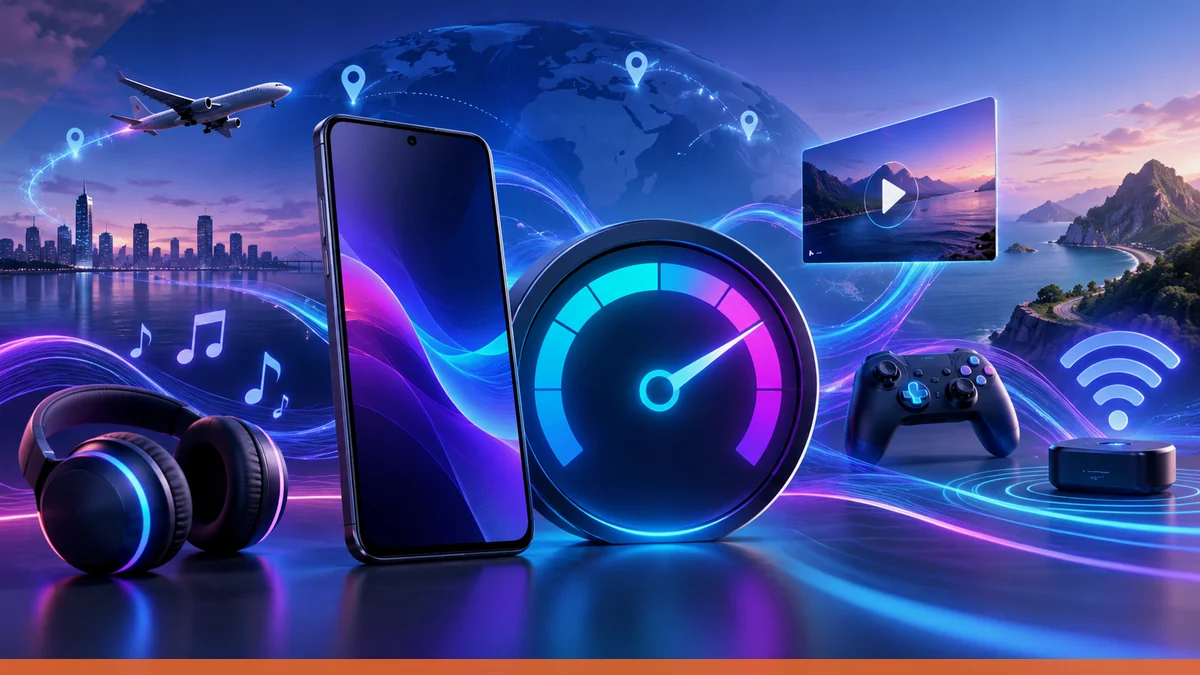
How much mobile data gaming uses while traveling depends on the game, but the safest approach is to measure your own title on your own phone, then keep big downloads and patches on Wi-Fi. On iPhone, Apple's cellular-data guidance lets you turn cellular data on or off, block data roaming, choose Low Data Mode, and switch cellular access off for specific apps and services; on Pixel phones, Google's Pixel eSIM guidance shows eSIM setup is handled in Settings under Network & internet, with carriers needing to support eSIM for it to work.
Measure the game first, not the guess
The most useful way to estimate gaming data use is to watch the phone’s cellular counters while you play a specific game. Apple says you can see how much data each app is using by going to Settings > Cellular, scrolling to the app list, and tapping Show All; the amount of cellular data used appears below each app. Apple also says you can turn cellular data on or off for any app or service from the same Cellular screen.
That matters because travel use is not just “the game.” Matchmaking, live events, ad loading, cloud sync, and background services can all add traffic. Apple’s page does not break gaming into a fixed per-hour number, so a reader should measure the title they actually play instead of relying on a generic estimate.
Separate gameplay from updates and background traffic
For iPhone users, Apple’s cellular-data guidance separates controls for the network connection itself from controls for individual apps and services. The path is Settings > Cellular > Cellular Data Options for roaming and Data Mode, and Settings > Cellular for app-level toggles. Apple says Data Roaming can be turned off to avoid roaming charges, and Data Mode can be set to Low Data Mode to reduce cellular usage.
- Settings > Cellular > Cellular Data Options > Data Roaming: turn off when the carrier or plan should not be used abroad.
- Settings > Cellular > Cellular Data Options > Data Mode > Low Data Mode: reduce cellular usage.
- Settings > Cellular: turn cellular data off for apps or services that should stay on Wi-Fi only.
That split is useful for travelers because the game itself may be small compared with updates, voice, video, and system traffic. Apple also notes that if Cellular Data is off, data services use only Wi-Fi, including email, web browsing, push notifications, and other services.
Keep voice chat and social features separate from the game
Many mobile games use voice chat, party chat, or linked social features that can consume data outside the core match. Apple’s page does not label game voice chat separately, but it does let the user control cellular access per app or service from Settings > Cellular. That means the practical method is to test the game with voice chat on, then repeat with voice chat off if the app allows it, while watching the cellular data total on the phone.
For readers using a travel eSIM data plans setup, the most relevant detail is that the plan should be treated as the data pipe for the entire entertainment session, not just the game. uPhone says its eSIM plans are data-only, and it says calls and texts abroad should use apps such as WhatsApp, FaceTime, iMessage, or Signal over the data connection. uPhone also says the physical SIM can stay installed and active while the eSIM is used for data on some plans and pages.
Download patches on Wi‑Fi before you travel
The cleanest way to avoid surprise mobile usage is to download game updates, maps, and patches on Wi‑Fi before leaving the hotel or home network. Apple’s cellular-data page supports that workflow by letting users shut off cellular data for specific apps and services, which prevents large downloads from using mobile data when the setting is left off. Apple also says Wi‑Fi Assist is one of the services that can be turned off from Settings > Cellular.
For iPhone users who are overseas, Apple says Data Roaming is the setting that permits internet access over a cellular data network when the user is in a region not covered by the carrier’s network. If the goal is to keep game downloads and other large entertainment traffic off roaming data, that setting should stay off unless the user has a roaming plan that is meant to cover it.
Set up travel connectivity on Pixel before you leave
Google’s Pixel eSIM guidance says carriers must support eSIM, and Pixel support says to use Settings > Network & internet > SIMs > Add SIM > Set up an eSIM, or in onboarding tap Download SIM or Set up, then follow the on-screen steps. Google also says Pixel 4 and later phones work with eSIM.
That matters for gaming travelers because eSIM is the easiest way to separate a home SIM from a trip data plan without swapping cards. If a trip plan is intended for streaming, voice chat, or online play, the phone still needs enough data allowance for the whole session, and Google notes that DSDS and eSIM work with some mobile carriers, so carrier support still determines whether the setup will work.
What to check before buying data for travel
Before choosing a plan, the reader should check only the items the provider documents and the phone supports. uPhone documents that its eSIM plans are data-only, that activation is done by QR code after purchase, and that some pages require a Wi‑Fi or existing data connection to complete setup. Its plan page also says the service is available for many destinations, but the page does not give a single universal speed or cap that applies to all plans.
- Confirm the phone supports eSIM.
- Confirm the carrier or eSIM provider documents support for the destination.
- Turn off Data Roaming on iPhone unless the trip plan is meant to be used abroad.
- Use Wi‑Fi for patches, downloads, and large updates before leaving.
- Measure the specific game on the phone instead of assuming a fixed data rate.
For mobile gaming while traveling, the practical rule is simple: measure the game, isolate voice chat and updates, and use Wi‑Fi whenever the download is large. Then use cellular data only for the part of the experience that actually needs it, whether that is the match itself, party chat, or a short session on the road.
More eSIM resources: Browse our eSIM guides and troubleshooting resources for compatibility, setup, travel-data and account-safety advice.
\nRelated reading: Download or Stream Before a Flight? Storage vs Mobile Data, Free Ways to Call and Message on a Data-Only Travel eSIM, and How to Play Browser Games Abroad Without Burning Through Your Data Plan.